AI prompts for Obsidian
Grab a Prompt is a free Obsidian plugin that puts this whole library — 45 prompts for research, rewriting, editing and proofreading — in your vault's sidebar. Pick a prompt and it fills in your note or selection and copies the result to your clipboard, ready to paste into ChatGPT, Claude, Gemini or any other AI chat. No API key, no account.
Install from Obsidian community plugins → Source on GitHub
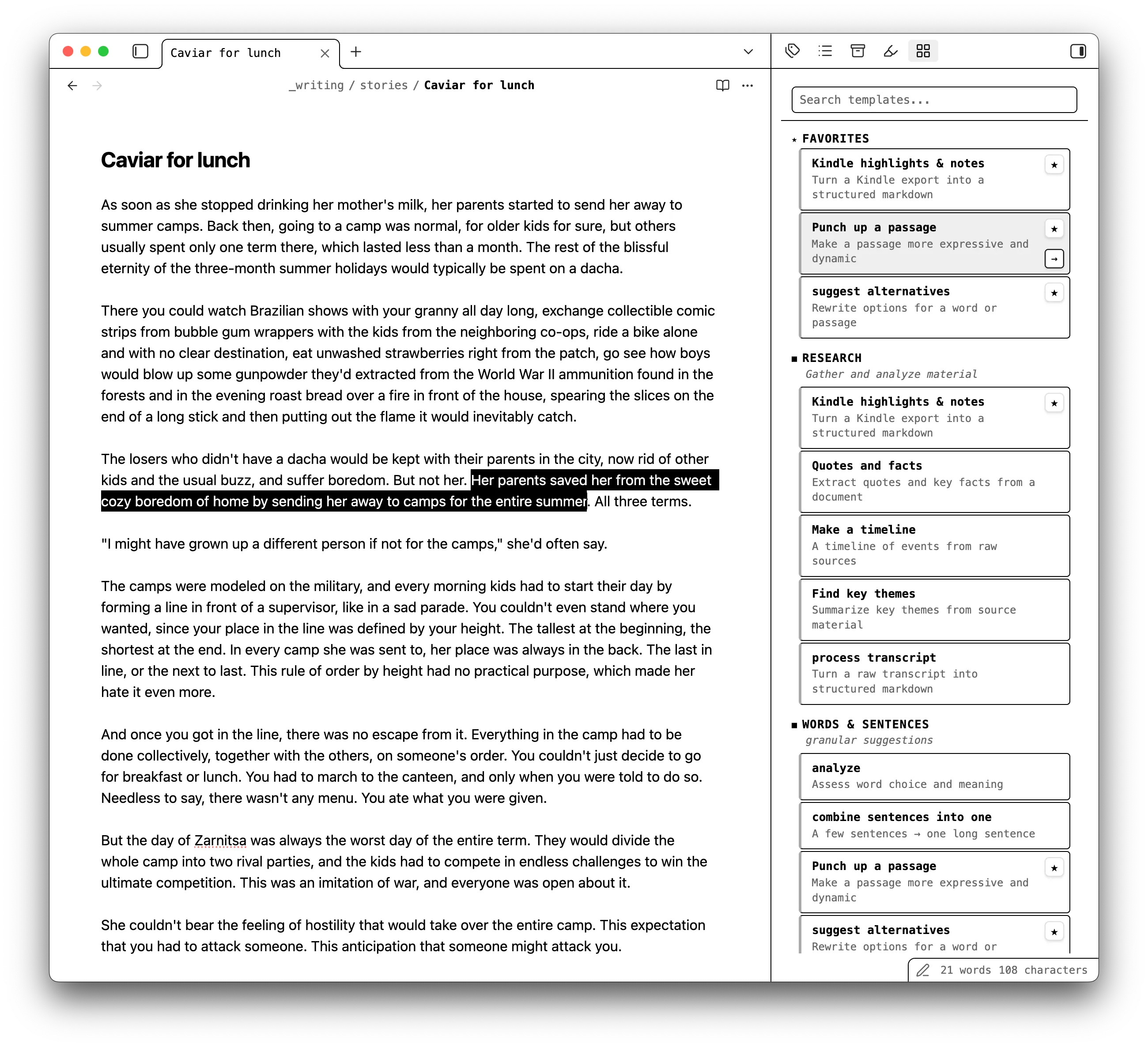
How it works
- Open the note you're working on.
- In the Grab a Prompt sidebar, browse the categories or search for a prompt.
- Click it. The prompt and your full note are copied to the clipboard together.
- Paste into ChatGPT, Claude, Gemini or whichever AI you use.
Some prompts work on one passage, like rewriting a sentence or punching up a paragraph. Select that text in your note first: those prompts stay disabled until you do, and your selection goes into the prompt alongside the full note.
What else it does
- Quick prompt — type your own instruction at the top of the sidebar and press Enter to copy it with your note.
- Selection bubble — select text, click the icon next to it, and say what the AI should do with it.
- Favorites — star the prompts you use most to pin them to the top.
- My templates — save your own prompts next to the built-in ones.
- Command palette — run Grab a Prompt: Browse templates to search without opening the sidebar.
- Follows your Obsidian light or dark theme.
Install
- In Obsidian, open Settings → Community plugins and turn off Restricted mode if it's on.
- Select Browse and search for "Grab a Prompt".
- Select Install, then Enable.
The sidebar opens on the right. To reopen it, click the grid icon in
the ribbon. To install by hand, download the files from the
latest release into .obsidian/plugins/grab-a-prompt in your vault.
Prompts included
The plugin ships with the prompts from this library. Each one has its own page here, too, if you'd rather use it in the browser.
Research
Gather and analyze material
- LinkedIn post ideas from transcript — Generate post ideas from an interview or a meeting
- Kindle highlights & notes — Turn a Kindle export into a structured markdown
- Quotes and facts — Extract quotes and key facts from a document
- Make a timeline — A timeline of events from raw sources
- Find key themes — Summarize key themes from source material
- Process transcript — Turn a raw transcript into structured markdown
Words & sentences
Granular suggestions
- Analyze — Assess word choice and meaning
- Combine sentences into one — A few sentences → one long sentence
- Punch up a passage — Make a passage more expressive and dynamic
- Suggest alternatives — Rewrite options for a word or passage
- Split long sentences — One long sentence → a few short sentences
- Fresh metaphors — Context-aware metaphors for a specific passage
- Creative alternatives — Inventive rewrites pushing the limits
Editing
Full-doc checks
- Vocabulary precision — Identify weak, vague, or misused word choices
- Zero-repeat scan — Catch accidental reuse of distinctive words and phrases
- Logic check — Find reasoning gaps, fallacies, and weak arguments
- 'Show, don't tell' audit — Find and rewrite abstract telling
- Redundancy sweep — Strip deadweight from prose
- Repetition audit — Find and fix unintentional word repetitions
- Cliché & dead language — Flag overused phrases and weak vocabulary
- Manuscript diagnostic — Balanced assessment of strengths and weaknesses
- Strong dialogue — Refine character conversations
- Pacing — Map rhythm and flow
- Point of view — Head-hopping and POV slips
- Sensory immersion — Sensory blind spots
- Muscular verbs — Dead verbs and adverb crutches
- Transitions — Weak and abrupt transitions
- Trust the reader — Over-explanation and info-dumps
Proofing
Full-doc polishing
- Punctuation — Catch misused commas, dashes, semicolons, and colons
- Consistency audit — Catch contradictions in names, dates, facts, and details
- Fact checker — Flag unsupported, misleading, or false factual claims in text
- Articles audit — Find and fix misused, missing, or unnecessary articles
- Tense precision check — Find and fix incorrect, awkward, or imprecise tense usage
- General grammar check — Catch grammar mistakes and subtle imperfections
- Native speaker check — Identify and rewrite ESL artifacts
Formatting
Boring stuff
- Chicago style formatter — Reformat text to Chicago Manual of Style without altering content
- AP style formatter — Reformat text to AP style without altering content
Famous writers
Feedback from the best
- Anton Chekhov — Prose critique applying Chekhov's principles
- George Orwell — Prose critique applying Orwell's principles
- Stephen King — Prose critique applying Stephen King's craft principles
- Ernest Hemingway — Prose critique applying Hemingway's principles
- Henry James — Prose critique applying James's principles
- Ursula K. Le Guin — Prose critique applying Le Guin's principles
- Virginia Woolf — Prose critique applying Woolf's principles
- Kurt Vonnegut — Prose critique applying Vonnegut's principles
Questions
Is it free?
Yes. The plugin is free and open source (MIT).
Do I need an API key?
No. The plugin doesn't call any AI itself. It builds the prompt and copies it, and you paste it into the AI chat you already use, on whatever plan you already have.
Does it send my notes anywhere?
No. The prompts are bundled with the plugin, so it makes no network calls. Your note only leaves the vault when you paste it into an AI yourself.
Does it work on mobile?
Yes, on Obsidian for desktop and mobile.
Who makes it?
The team behind this site and icanwrite, a markdown editor for writers that runs these checks right inside your draft. Feedback comes back as comments in the sidebar, each one tied to the passage it's about, so there's no copy-pasting and no digging through a chat.